King of the Jungle
ASSIGNMENT
Create a multiplayer game with levels/rounds 1-2 minutes long, multiple characters, and some form of peripheral devices or online.
DESCRIPTION
We decided to make a 2-4 player jungle themed game with little minigames, inspired by party animals and Wii party.
TEAM MEMBERS
Lily Ahmad-Davis
Eris Mardi
Khimberly Grogan
TRAILER
Credit to Eris Mardi for arranging the trailer
Weekly Journal
Week 1
In Class
We got into groups and discussed possible ideas. We made a large list of multiplayer games to draw inspiration from.
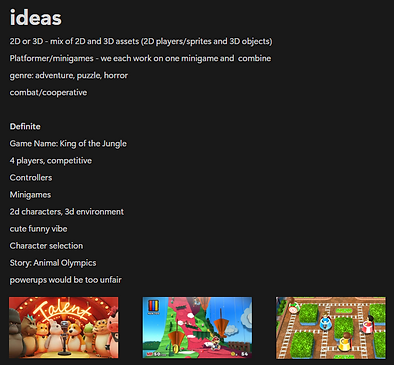
We then narrowed down our list of inspiration and decided what kind of game we decided to make. These are our final ideas.
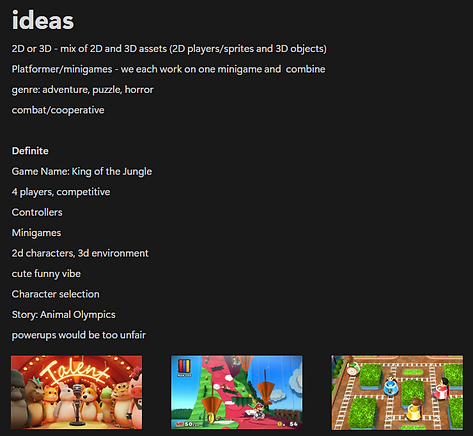
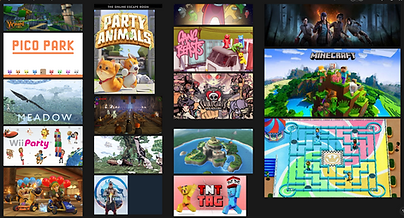
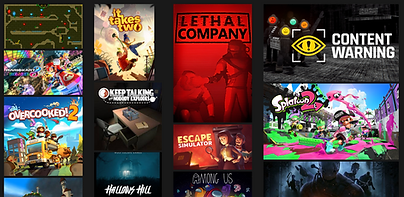
Inspo list made by all of us
We all decided to work on a minigame each, but still have main roles in the group; I am doing the main coding.
We decided to make our game jungle-themed, so we came up with a list of jungle animals to use as characters. We tried to have a good variety of colour.
At Home
Our group decided to use gamepads as our peripheral device, so I researched how to code that into unity. I found this tutorial to connect my Xbox controller using Unity's built-in Input System and created a basic movement script to test it out.
Week 2
In Class
We had a tutorial on connecting a controller in unity (i had already done that but i was glad that i did it the correct way) and then on how to make it multiplayer and add multiple devices.
I brought in my Wii so we could play some games that inspired our own minigames (Wii Party), and we had a lot of fun. It was definitely game research...
We discussed more about what minigames we each wanted to make. Since our art style is going to be cute and squishy, we thought it would be cool to have almost abusive game design incorporated into the minigames as a contrast. For example, one of the Wii Party minigames is a maze, but twice during the race to the centre, the miis stand on turntables and the controls get spun around on the remotes. Its both funny and frustrating to try navigate when the controls are all wrong. We wanted to include a minigame like this into our own game.
While in class, I created a simple shape for the maze and set up a basic player movement script and finish collider.
Preview of initial maze
Timelapse of creating initial maze
At home
I created a spin handler for my maze minigame. To do this, I created 3 extra Action Maps in the Input System where the controls are spun around (e.g. w = left, a = down, s = right, d = up). When the player enters the spin trigger, their Input System is randomly changed to one of the other Action Maps.
Preview of Spin Controls
I started making a basic version of a character select screen. I didn't get too far with this, but it was a good start.
Timelapse of Adding Spin Controls
Timelapse of initial character select
My group and I aren't very familiar with Github so we hadn't started using it yet, but realized we definitely needed to. Since I'm in charge of the coding for everything other than the minigames we are each making, I asked my team members to send me their minigames so far so I could add them to my project and then push it to Github so we had one unified project.
(Disclaimer: I didn't do the code or scene layout for the race minigame, Lily Ahmad-Davis did it, I'm just adding it into my project and editing a few bits)
Timelapse of Adding Race minigame to main project
Week 3
I decided I wanted to add more obstacles into the maze than just the spin controls. Since our game is jungle themed, I decided to add a rolling boulder that would send you back to the start if you hit it. The first timelapse shows me adding the boulder movement and sending the players back to the start. I realized that the Input Controls were still spun around when the player is returned to the start, so the next timelapse shows me resetting the Input controls back to the original ones, and resetting the spin trigger so it can be used again
Preview of Boulders
Timelapse of adding Boulders
Timelapse of resetting player and spin controls
I added a delay once the players had finished the maze before the next scene
Preview of finish Delay
Maze finish Delay
Week 4
I didn't manage to do heaps this week, I had a big assignment due for another class. I did continue to work on the character selection screen and do some basic modelling for my maze minigame.
Timelapse of Character Select
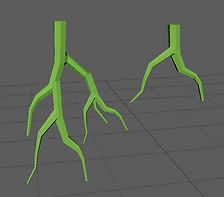
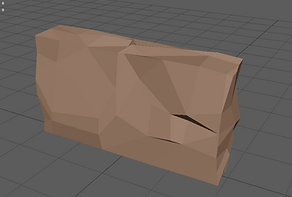
For my maze minigame, I modelled a wall, vines, and a boulder. These are only rough assets, they will get redone later on. For the wall and boulder, I followed this tutorial and for the vines I followed this tutorial.
Week 5
Once I added in my boulder models, I noticed they weren't actually rotating, so I created a script to make them spin in the direction they are travelling.
Preview of rotating boulders
Once again working on the character selection. I got it to work this time, but I don't think its the most efficient/best way to do it.
Preview of character selection
Timelapse of rotating boulders
Timelapse of character selection
Up until now, I had just been using one camera for the whole scene, however I didn't like the perspective it gave, especially for the players in the furthest mazes. I decided to make it split screen instead, with each player having their own camera. I used this tutorial to create the split screen. I only made a really basic version for now, with just a static camera for each maze, however I will change it later so the camera actually follows each player.
Timelapse of split screen
I redid the layout of the maze since it was very small and didn't take that long to complete. This meant I could add in another boulder to each maze to make it a little more difficult. I also separated the mazes and made them all face the same way since they now each have their own cameras.
Timelapse of redoing maze layout
I created a script so the cameras would follow each player rather than look at the entire maze. This looked better since the character is fairly small, and it also adds another layer of difficulty since the player can't see the entire maze at once. I followed this tutorial for the script.
Timelapse of Camera follow
Preview of Camera follow
Week 6
I created a simple script to make a countdown at the start of the minigame. During the countdown, the players controls are disabled, then re-enabled once the countdown is up.
Timelapse of Countdown
In class Masaya did a tutorial on a character selection screen. Even though I had already been working on one, I followed the tutorial since I wasn't happy with mine. It was a much better way of doing it, the tutorial utilized Scriptable objects which was something I hadn't done before.
In class I only got through about half the tutorial (I was trying to watch it on my phone) but thought I did it wrong so I redid it later at home. Masaya showed us how to do it all in one scene (just making the UI disappear once all players have selected a character and spawning the characters) whereas our minigames were in different scenes.
I attempted to modify the script but I didn't get too far with it, my parents got covid and I had to do a lot of chores for them.
Timelapse of following Character selection tutorial
Timelapse of modifying script
Week 7
We did playtesting in the morning class, but we all thought it was going to be in the afternoon so we weren't ready for it. Our game was currently broken since I left off halfway through the character select coding, but we managed to pull together most of the minigames to work. We did end up getting really helpful feedback, especially from the third years.
I did a lot in class but forgot to screen record...
I changed the characters to spawn from prefabs instead of already being in the scene, but cause the prefabs each had their own camera, the display rect was just overlapping in the top corner of the screen. Brooke helped me fix this by adding to the script a part that changed the camera rect based on the players ID.
I finally got the character select to be functional, and started adding it to my team members minigames (with their permission). The only downside to this was that all the playtesting now had to be done from the character select screen instead of directly from their minigame.
Timelapse of Character select
Timelapse of Player select
Preview of Character Select Screen
Disclaimer: Eris did all of the art/models in this
At home, I helped Eris with their minigame, Tug O War. but I forgot to record it... They wanted buttons to pop up on the screen and the players would press the corresponding button on their controller to pull the rope towards them. I spent a lot of time on this, it was a lot harder than I was expecting, but my dad who is a software engineer (he uses C# but not in Unity) helped me a lot. The buttons show up on each players side of the screen, and change the prompts depending on the controller the player is using.
Scroll-through of Tug O War scripts
Disclaimer: Eris wrote the code for most of the PlayerInput script
Preview of Tug O War
Disclaimer: Eris did all of the art/models in this
Mid-semester break
Feedback
We got feedback from our formative at the start of the break. Our group feedback was that we should have the game more polished by this stage, our GDD needs needs more for our individual games and also how the inputs/character skins get passed between scenes. I was the one who did the coding for this, so I need to add that part. We also needed to add mock ups for the minigames and UI, and the overall storyline.
For my personal feedback, Masaya said my documentation was good so far but I should elaborate more in depth with some elements, especially things I struggled with or learnt for the first time. Other than that, he recommended adding a debug so we can start directly from our minigames and not have to go through the character and minigame selection screens.
UI
I added a frame around my minigame, so that each players section was more obvious. However, when I did this I realised we weren't using full HD (1920x1080), so the UI was all over the place. I edited the UI with full HD on, and messaged my team members to do the same.
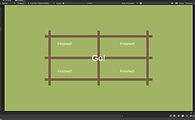
Before Full HD (1920x1080)
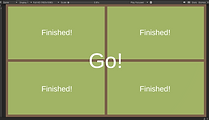
With Full HD (1920x1080)
Start Buttons
I noticed in the character selection scene that the start button doesn't work with controllers or keyboard, only with the mouse. I realised this happened because I disable the input for all the players once they have confirmed their character, but player one isn't meant to be disabled so they can still control the buttons. In the OnConfirm function, I tried adding that if the player ID isn't 0 (player 1) then the controls would be disabled, however this gave me errors. What I ended up doing was manually removing the input controls for toggling between sprites and confirming for all characters once they had confirmed a character, and disabling controls as a whole from any player that wasn't player 1 (playerID 0).
I also added a bit of code that doesn't enable the start button until there are at least 2 players, and all players have confirmed their characters. The button will also change the text depending on what controller Player 1 is using.
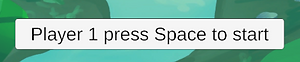
Start button if Player 1 uses a keyboard

Start button if Player 1 uses an XBOX controller
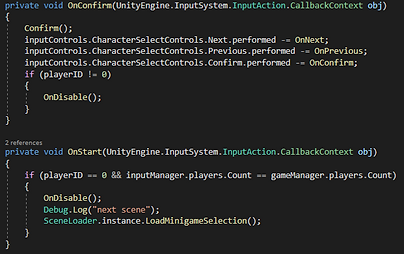
OnConfirm and OnStart functions
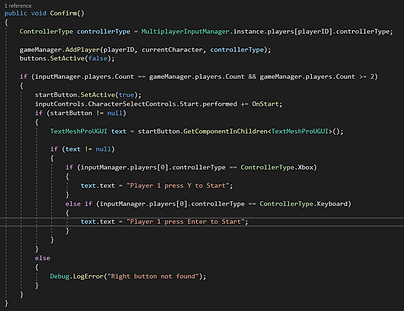
Confirm function
Left and Right Buttons
To make it obvious which buttons players use to toggle through characters, I added this code to the script, that looks at the players controller types.
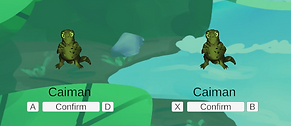
Buttons match players' controller type
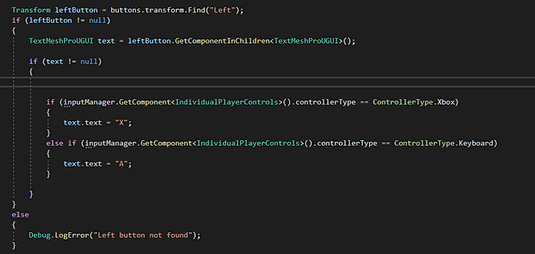
Sets correct text on left button
Loading Instructions
I created this switch in the Scene Loader script for loading in the instruction screens, so I didn't have to make a new function for each minigame.
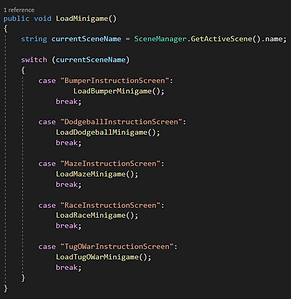
Switch statement for instruction scenes
Player 1 Controller Type
I added this variable so I can easily access player 1's (playerID 0) controller type throughout the game.

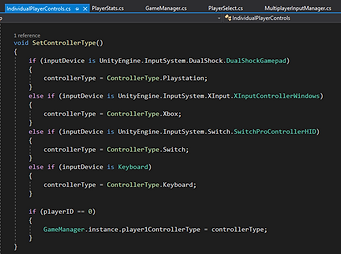
Added player 1 controller type to Individual Player Controls
Start Button
I changed the start button in the main menu to not be a real button, just visuals, and the game starts when any key is pressed. I did like this because no inputs have been set yet so I can't use the input system.
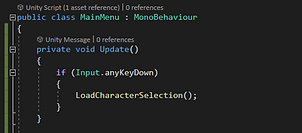
Manager Scene
I noticed that the scripts kept disappearing. I tried lots of things, but asked ChatGPT and it said to use a persistent Manager Scene. I created a scene that gets loaded in at the main menu and persists through the game. I tried to reset the instances and unload the scene when returning to the main menu like this, but it gave me an error.
I couldn't figure out why I was getting this error when I tried to use the "return to main menu" button in the score scene, all the scripts were in the scene and the button had reference to the scene loader. Then I realised the button was getting reference to the prefab of scene loader, not the active instance in the scene. I added this script to the canvas in the scene to find the active scene loader and it worked. Also I didn't need to reload the manager scene since it was being destroyed after the main menu scene, so I just reset the game manager and input manager. Then when the main menu is loaded, the manager scene loads in but doesn't do anything since the scripts are all still active.
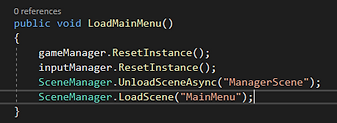
Trying to reset Manager Scene
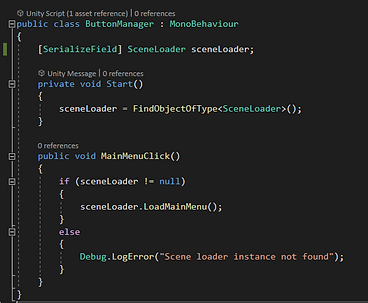
Added script to canvas in Score Scene
Replay Button
I want to make a replay button, so players can instantly replay a minigame without having to go back to the main menu and setting up the game again. I tried to do it previously, but it didn't work because it was looking at the index of the scene, not actually the scene that was last active.
In the Scene Loader, I created string called previousScene and a function that sets the current scene name as previousScene. I call this function before any scene is loaded in, so it sets the current scene as previous then changes to the new scene. This now allows the play again button to work.
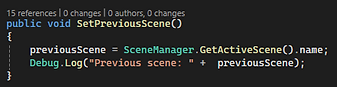
Sets previous scene
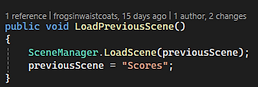
Loads previous scene
Placing and Scores
I added these lines to the player Finish Manager, it makes the place the player got display on the screen. I will use this number to set the placing and scores. I also changed Player Finish to be an int instead of void so I could pass back the score and assign it in player data.
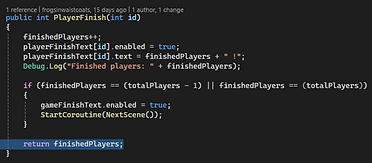
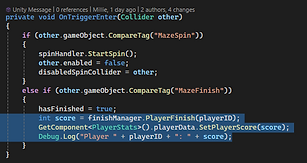
Sets placing in Finish Manager
Gets placing in Player Input
This first way I did it set the first player to finish score as 1, when I want them to have the highest score. However, I want that to change depending on how many players are in the game. I changed the initial score to be called placing, because I still needed that to be displayed on the screen. I added a new int function in MazeFinishManager called calculateScore. It takes the players placing and sets it as 1 to start (so the final player gets 1 point). Then if the placing is 1, the player gets a score equal to the number of players, if the placing is 2 they get number of players minus 1 etc. This is then passed back to MazePlayerInput which sets the score in the playerData list.
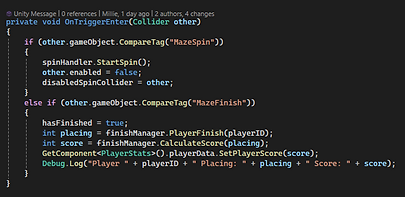
Gets placing and score in Player Input
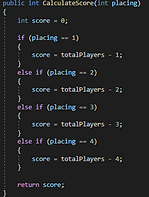
Calculate Score
Displaying score texts
I created a Score Manager in the score scene. In the awake function, it looks to see how many players there are, and only shows that many text options, so if there are only 2 players only 1st and 2nd will show up, three players would also have third etc.
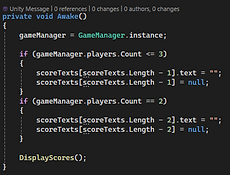
Disabling unneeded score texts
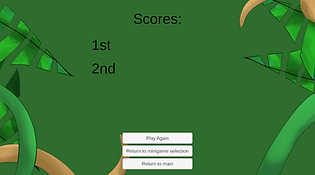
Score Texts for a 2-player game
Display Placings
I created a function to display the scores. I wanted the scores to be shown from highest to lowest and I didn't know how to do this, so I asked ChatGPT and it gave me these lines (starting with player Data). The first line looks in the list of players in the Game Manager, sorts them by scores highest to lowest, then chooses the highest score. The second line does the same then skips the first one and looks at the next highest. I then assign these to scoreTexts to display the selected players ID plus 1 (so player 0 is player 1), and the text options that have been turned off get skipped because they aren't needed.
Using buttons with input system
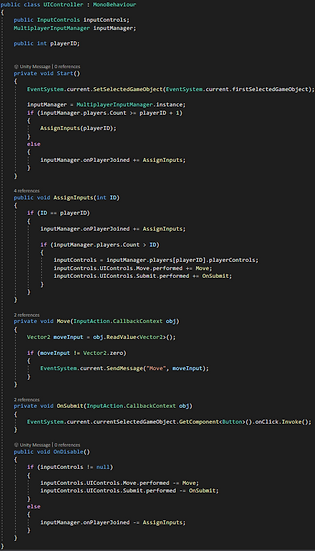
Currently, the controllers don't work for the UI on screen, like selecting buttons. It has to be done with the mouse, which I need to change because our final game will not use a mouse and keyboard, only controllers. I had no idea how to even approach this, I tried googling but didn't find what I was looking for, so I asked ChatGPT. It told me to set up the Input system in the event system and add a script to the scene called UIController. I found this worked when starting from that scene (I was trying the minigame selection scene) but when I tried from the main menu, it didn't work in Minigame Selection anymore. I wasn't getting any errors, but the buttons were not being highlighted.
I thought the issue was that the Action Map was not being changed to the UI controller map I made, so I tried to set it up like I did when I set up other input action maps. This script did work, however it gave me error messages when I used the control stick on the controller. And then when I clicked the button for a minigame, it gave me this error, even though it still let me continue the game.


Error Messages
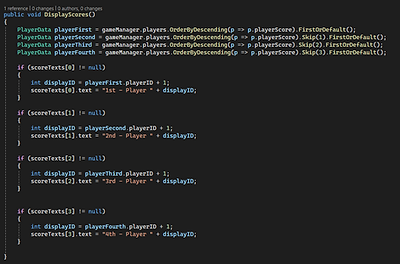
Displaying players in score order
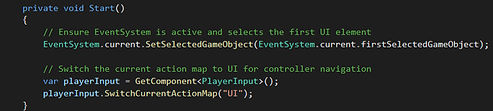
First UI Controller Script
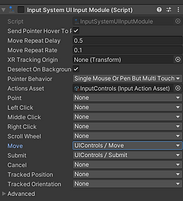
Input System Component
Second UI Controller Script
Total Score and Clear Score
I made a total score variable in PlayerData, so that could keep track of the players overall score (we will do something with this later). I added a reset score function to be called when any button is pressed in the score screen so that the player score gets reset at the start of each minigame.
I made this function to set the player scores to 0, but there wont always be 4 players so this might give me an error. I want to get more used to tidying up my code and being more efficient, so I made a foreach loop instead. I thought this would work, but the player score and total score didn't increase the second time through. I found the error was that the variable Finished Players was not being reset back to 0, so the second time through, even though a player was first to finish that round, they were being marked as the second to finish, after themself in the previous round, so therefore weren't gaining any points. Ideally the entire script would be destroyed after the minigame has finished, but I don't know how to do that yet, so I simply set the finished players back to 0 just before the next scene loads.
I then added this scoring system to Lily and Eris' minigames (Khimberly made her own scoring system).
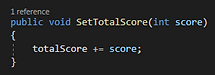
Set Total Score
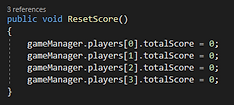
Reset Score
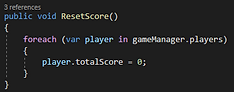
Reset Score Foreach loop
Week 8
Button Error
In class, Masaya helped me clear the error message that popped up when you tried to select a button. I noticed it doesn't work with 2 players but it does with three, and it always works with the keyboard. For some reason the default input device is the keyboard and that only gets changed when there are three characters for some reason, so the input doesn't pick up the controllers. However, Masaya said it wasn't too much of an issue now and just to leave it for later since we know how to get around it.
I didn't get a lot of work done this week, I was feeling really burnt out and was struggling to get into it. So I just fixed a few little things. Some of my boulders were rotating the wrong way, so I set the speed to be negative to reverse the direction.
I didn't do heaps this week, I was really struggling to get into it. I fixed a few little things, some of my boulders were rolling the wrong way so I just changed the speed to be negative so it would reverse.
I also
Week 9
Minigame Buttons
The buttons on the minigame selection weren't working properly, for some reason only the Maze and Dodgeball buttons were able to be highlighted. I looked at the colliders and realised it was because they were covering all the other buttons. So I cropped the images to make the colliders smaller, and it worked right.
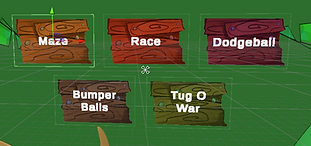
Corrected button colliders
Start Button
I changed the start button to listen for the Space Bar or A (south button) on a controller instead of any button. I did this because we were having issues if the button players chose to press was Enter or Start, which in the next scene adds the player to the game. If the first player hit Enter in the main menu, but in the next scene (character selection) the second player joined first, the second player would show up second, not in the first place, and the first player wouldn't show up at all.
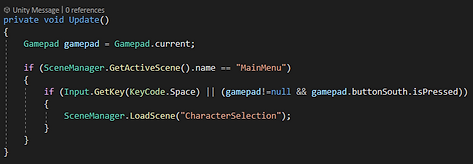
Corrected button colliders
Character Selection
I wanted each character to only be able to be chosen by one player. I was having brain fog (ADHD) and had no idea how to approach this, so I asked ChatGPT. It told me to add a bool to the character objects which get set to true in the confirm function, and add these do-while loops around the next and previous character functions. This didn't work at first, and I realised some characters were automatically set to chosen for some reason so they weren't showing up as an option in the first place. I unticked them all and made a function that resets them to false, so when the game is restarted, all characters will definitely be available again. I also added this to set character so it would ignore any character already chosen.
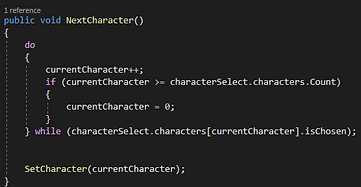
Next Character
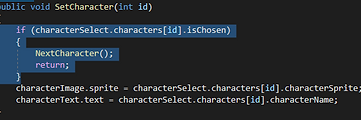
Set Character
While this mostly worked, I noticed that if both players were on the same character and one player chose it, the other player could still also chose it. So I added this function that forces the player to the next character if the one they are currently on has been chosen.
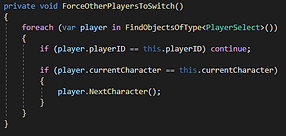
Force Players to Switch
This did put the player on the next character, but also put the selected player on that character too. The data was right in the player list, the player would have the correct character in the minigames, but the display in this scene was wrong. I tried recalling the set character function once its been confirmed, this did nothing.

Error with ForcePlayersToSwitch
I also noticed another weird thing in the character select. If Player 1 and Player 2 join, then Player 2 confirms their character first, in the maze minigame Player 2 is in player 1's spot.
Story mode
We decided to add in a Story Mode, which would play an animatic explaining the plot of the game, take players through all the minigames in order, and play a podium scene at the end.
To do this, I created a bool in the SceneLoader script that gets set to true if Story Mode is chosen. First the intro animatic is loaded in, then the instruction screen for the Maze minigame. Once each minigame is finished, it will take you to the score screen, but instead of having three options (play again, return to minigame selection, and return to main) next is the only available option, which takes players to a total scores screen, then to the next minigame.
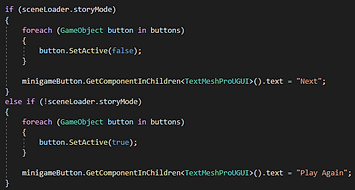
Changing buttons for Story Mode
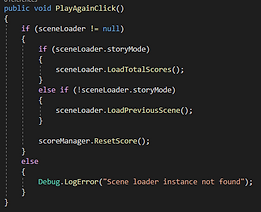
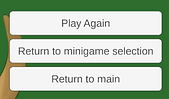
Regular score screen buttons

Story Mode score screen button
Changing button function for Story Mode
Score Display
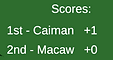
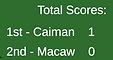
Instead of writing "Player 1" or "Player 2" in the score screens, the names of the characters show up instead.

Score text

Total Score text
Week 10
Minigame Buttons
The buttons on the minigame selection weren't working properly, for some reason only the Maze and Dodgeball buttons were able to be highlighted. I looked at the colliders and realised it was because they were covering all the other buttons. So I cropped the images to make the colliders smaller, and it worked right.
Corrected button colliders
Start Button
I changed the start button to listen for the Space Bar or A (south button) on a controller instead of any button. I did this because we were having issues if the button players chose to press was Enter or Start, which in the next scene adds the player to the game. If the first player hit Enter in the main menu, but in the next scene (character selection) the second player joined first, the second player would show up second, not in the first place, and the first player wouldn't show up at all.
Corrected button colliders
Character Selection
I wanted each character to only be able to be chosen by one player. I was having brain fog (ADHD) and had no idea how to approach this, so I asked ChatGPT. It told me to add a bool to the character objects which get set to true in the confirm function, and add these do-while loops around the next and previous character functions. This didn't work at first, and I realised some characters were automatically set to chosen for some reason so they weren't showing up as an option in the first place. I unticked them all and made a function that resets them to false, so when the game is restarted, all characters will definitely be available again. I also added this to set character so it would ignore any character already chosen.
Next Character
Set Character
While this mostly worked, I noticed that if both players were on the same character and one player chose it, the other player could still also chose it. So I added this function that forces the player to the next character if the one they are currently on has been chosen.
Force Players to Switch
This did put the player on the next character, but also put the selected player on that character too. The data was right in the player list, the player would have the correct character in the minigames, but the display in this scene was wrong. I tried recalling the set character function once its been confirmed, this did nothing.
Error with ForcePlayersToSwitch
I also noticed another weird thing in the character select. If Player 1 and Player 2 join, then Player 2 confirms their character first, in the maze minigame Player 2 is in player 1's spot.
Story mode
We decided to add in a Story Mode, which would play an animatic explaining the plot of the game, take players through all the minigames in order, and play a podium scene at the end.
To do this, I created a bool in the SceneLoader script that gets set to true if Story Mode is chosen. First the intro animatic is loaded in, then the instruction screen for the Maze minigame. Once each minigame is finished, it will take you to the score screen, but instead of having three options (play again, return to minigame selection, and return to main) next is the only available option, which takes players to a total scores screen, then to the next minigame.
Changing buttons for Story Mode
Regular score screen buttons
Story Mode score screen button
Changing button function for Story Mode
Score Display
Instead of writing "Player 1" or "Player 2" in the score screens, the names of the characters show up instead.
Score text
Total Score text
Week 11
This week I mainly focused on adding 2 buttons to the Tug of War minigame instead of only one, so players have to press both buttons at the same time to pull the rope. We decided to add this because just having one button meant players could button mash and cheat.
Button Colours
The first thing I did was change the buttons for each player. The buttons spawn in each players quarter of the screen, but to reduce confusion I set the button colours to match the colour of their name in the corners.



New Colours
Two buttons
In the TOW Player Input script, I instantiate a second button alongside the first, then pass both through to Open Reload UI.
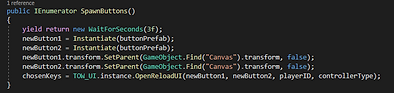
Spawn 2 buttons
In the TOW_UI script, I edited the functions to return a tuple of type (string, string) instead of just a string, so I could create 2 buttons. Instead of getting two separate random buttons, I get the both at the same time also as a tuple. This is so I can ensure that both buttons cannot be the same.
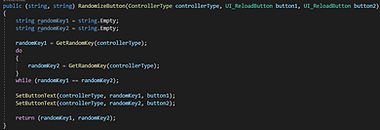
Randomize Button as a tuple
In the TOW Player Input script, I tried to edit the OnPull Input Action to look for 2 buttons at a time. This sort of worked, but it only worked when the buttons were pressed separately, not simultaneously as intended. I tried several different versions of this, but none worked.
I think the issue is that the input system will only detect one OnPull action at a time. I didn't do too much research into this as I had other things I also needed to get done, but I think I would have had to do something with bindings in the Action Map.
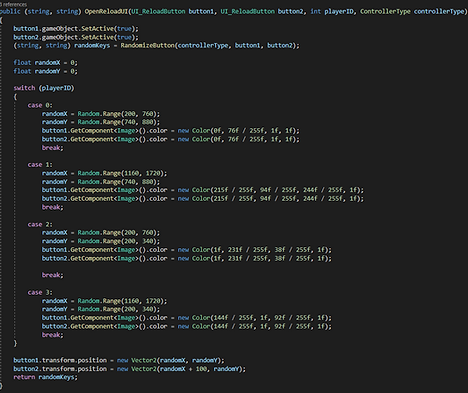
Open Reload UI as a tuple
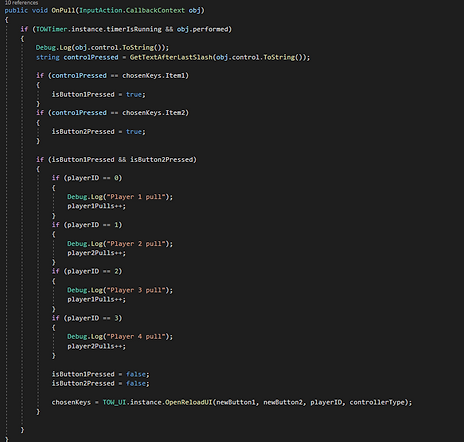
OnPull for a tuple
Evening out a 3 player game
I added this if statement to the player 2 (playerID 1) in OnPull. If there are 3 players, both players 1 and 3 will spawn on the same side, meaning they would have double the amount of pulls. So to even this out, in a 3-player game, player 2's pulls count for 2 pulls at a time.
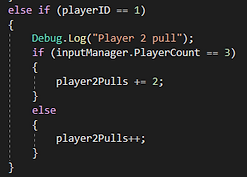
In OnPull script
Penalty
I still needed to ensure players couldn't button mash, so I added a Penalty coroutine. This will get called if the button that the player presses isn't one of the two buttons on screen. The buttons will turn red, players will lose the ability to press any button for 2 seconds, then new buttons will be spawned.
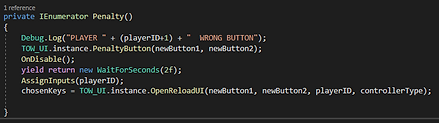
Penalty Coroutine
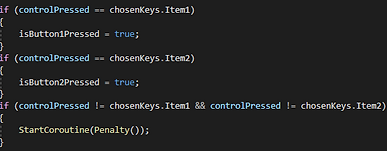
Calling Penalty Coroutine

Making buttons red
Character Animations
I added in the character animations to each of the minigames. Eris drew all the animations and sent me the frames, then I set them up as animations in the project. The way I set it up so the correct animation would play to match the chosen sprite was by created a bool for each character. When a player moves, the animator is enabled and sets true the bool that matched the character name. When the player stops moving, the sprite is set back to the original. I did this instead of just pausing the animation so that a character wouldn't pause mid-blink or something similar. I added this to four out of the five minigames (maze, race, dodgeball, and tug of war).
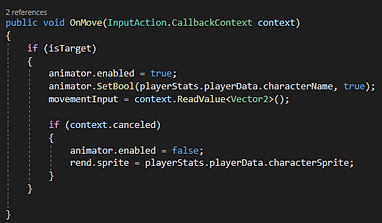
Animator in Player Inputs
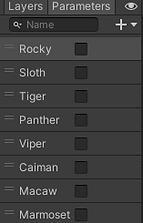
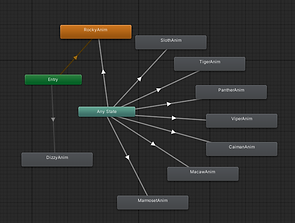
Animator bools and layout
Week 12
Feedback
This week we handed in builds of our games for the other class to playtest. We got some helpful feedback, but some was quite broad and were just opinions with no reason why or suggestions. The main feedback I got on my maze minigame was that people didn't like it. I think the main issues were that the instructions were not clear enough, and it was slightly too hard so no one was able to complete the maze in the time limit. For Tug of War, people thought that the game was broken since you can't press both buttons at the same time, only individually.
Maze Instructions
For the instructions, I took inspiration from the game I originally based my game on, Maze Daze from Wii Party. I made sure to explicitly state in the instructions that when you stand on a spinner, your controls will be rotated.
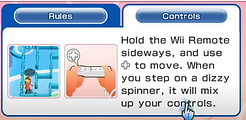
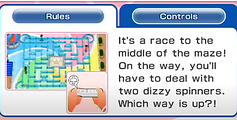
Maze Daze Instruction Screens
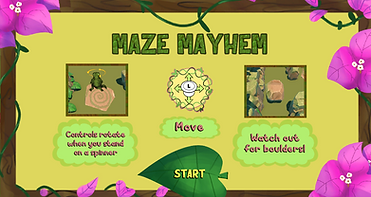
My updated Instruction Screen
Maze Difficulty
To decrease the difficulty, Masaya and Brooke recommended making the spun controls reset to normal after around 10 seconds. I did this for the first and third spin, where the controls are rotated sideways (e.g. up is left, left is down, down in right, right is up), and left the second spin controls (the upside down controls) as permanent. I added a coroutine that resets the controls after 10 seconds to the first and third spinners.
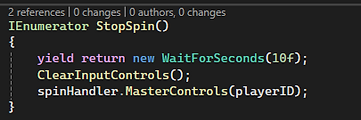
Stop Spin Coroutine
Maze spin visual
I also decided that there should be some kind of visual indication of when the players controls are spun. Masaya suggested added an arrow above the players to show which way is up, or to add a dizzy animation, and Brooke also suggested adding a dizzy animation. I drew the animation in Procreate, then added it as a child to the player sprite so it would stay attached as the player moves around. When the player is spun, the animator is enabled, and whenever the input controls are reset, I disable the dizzy animator.
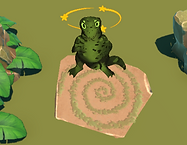

Dizzy Animation
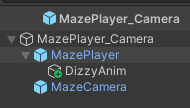
Dizzy Animation on Player
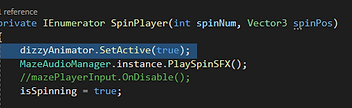
Enabling Dizzy Animation
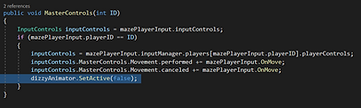
Disabling Dizzy Animation
Tug of War buttons
For the Tug of War minigame, Brooke recommended removing the second button since you can only press one at a time anyway and it was confusing people. We originally added the second button in so players couldn't just button mash, but since I've added the penalty for pressing the wrong button, button mashing won't be an issue anymore with only one button.
GitHub
I learnt a very important lesson to not upload build files to GitHub :/
Until this week, I had been saving our test builds in a folder inside our GitHub project and never had any issues, however this week our build was too large and Git wouldn't push it. This wouldn't have been an issue if I had noticed straight away, but I didn't and committed a few more times after that, so I couldn't just delete the commit. I got my dad to help me, and we tried to use the BFG repo cleaner, however this ended up breaking a lot of the files. Luckily I had only changed a few small things, so I just deleted my version and redownloaded it from GitHub. I now know to not save large files like build files to GitHub.
Final Build version 1
We finalised all of our elements and I built out the game. I got my family to test it with me so I could test with 4 players, and tried not to give any hints so I could see if our game was understandable. Overall they enjoyed it, however there were a few bugs. The things that I needed to fix were:

- disabling the spin visuals on the ground once they have been used. My sister in law got stuck in the maze because she didn't want to go back over the spinner because she thought it would rotate her controls again.
- disabling story mode when returning to the main menu. Once you play through story mode, it doesn't get set back to false, and will go into story mode even if you pick an individual minigame to play.
To disable the spin visuals, I created a coroutine that finds the spin visual group on the same parent as the spin trigger, and disables them after 1 second. These get re-enabled if the spin trigger is re-enabled.
To disable storymode when replaying the game, I simply set story mode to false whenever you return to the main menu
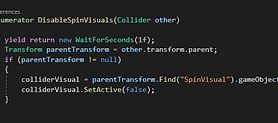
Coroutine to disable spin visuals
Reflection
Feedback
This week we handed in builds of our games for the other class to playtest. We got some helpful feedback, but some was quite broad and were just opinions with no reason why or suggestions. The main feedback I got on my maze minigame was that people didn't like it. I think the main issues were that the instructions were not clear enough, and it was slightly too hard so no one was able to complete the maze in the time limit. For Tug of War, people thought that the game was broken since you can't press both buttons at the same time, only individually.
Maze Instructions
For the instructions, I took inspiration from the game I originally based my game on, Maze Daze from Wii Party. I made sure to explicitly state in the instructions that when you stand on a spinner, your controls will be rotated.
Maze Daze Instruction Screens
My updated Instruction Screen
Maze Difficulty
To decrease the difficulty, Masaya and Brooke recommended making the spun controls reset to normal after around 10 seconds. I did this for the first and third spin, where the controls are rotated sideways (e.g. up is left, left is down, down in right, right is up), and left the second spin controls (the upside down controls) as permanent. I added a coroutine that resets the controls after 10 seconds to the first and third spinners.
Stop Spin Coroutine
Maze spin visual
I also decided that there should be some kind of visual indication of when the players controls are spun. Masaya suggested added an arrow above the players to show which way is up, or to add a dizzy animation, and Brooke also suggested adding a dizzy animation. I drew the animation in Procreate, then added it as a child to the player sprite so it would stay attached as the player moves around. When the player is spun, the animator is enabled, and whenever the input controls are reset, I disable the dizzy animator.
Dizzy Animation
Dizzy Animation on Player
Enabling Dizzy Animation
Disabling Dizzy Animation
Tug of War buttons
For the Tug of War minigame, Brooke recommended removing the second button since you can only press one at a time anyway and it was confusing people. We originally added the second button in so players couldn't just button mash, but since I've added the penalty for pressing the wrong button, button mashing won't be an issue anymore with only one button.
GitHub
I learnt a very important lesson to not upload build files to GitHub :/
Until this week, I had been saving our test builds in a folder inside our GitHub project and never had any issues, however this week our build was too large and Git wouldn't push it. This wouldn't have been an issue if I had noticed straight away, but I didn't and committed a few more times after that, so I couldn't just delete the commit. I got my dad to help me, and we tried to use the BFG repo cleaner, however this ended up breaking a lot of the files. Luckily I had only changed a few small things, so I just deleted my version and redownloaded it from GitHub. I now know to not save large files like build files to GitHub.
Final Build version 1
We finalised all of our elements and I built out the game. I got my family to test it with me so I could test with 4 players, and tried not to give any hints so I could see if our game was understandable. Overall they enjoyed it, however there were a few bugs. The things that I needed to fix were:
- disabling the spin visuals on the ground once they have been used. My sister in law got stuck in the maze because she didn't want to go back over the spinner because she thought it would rotate her controls again.
- disabling story mode when returning to the main menu. Once you play through story mode, it doesn't get set back to false, and will go into story mode even if you pick an individual minigame to play.
To disable the spin visuals, I created a coroutine that finds the spin visual group on the same parent as the spin trigger, and disables them after 1 second. These get re-enabled if the spin trigger is re-enabled.
To disable storymode when replaying the game, I simply set story mode to false whenever you return to the main menu
Coroutine to disable spin visuals