Forest Cafe
ASSIGNMENT
Game Jam #03 - Pick Me Up
Group: Eris Mardy, Lily Ahmad-Davis, Kianna Bulawan.
My Roles: Coding/all unity aspects
DESCRIPTION
I stayed with the same group as the previous assignment. To stick with the theme of 'pick me up', we decided to make a cafe game where you pick up the customers orders and deliver it to them.
Disclaimer: all art shown was done by Eris Mardy, Lily Ahmad-Davis, and Kianna Bulawan, and all audio was made by Kianna Bulawan.
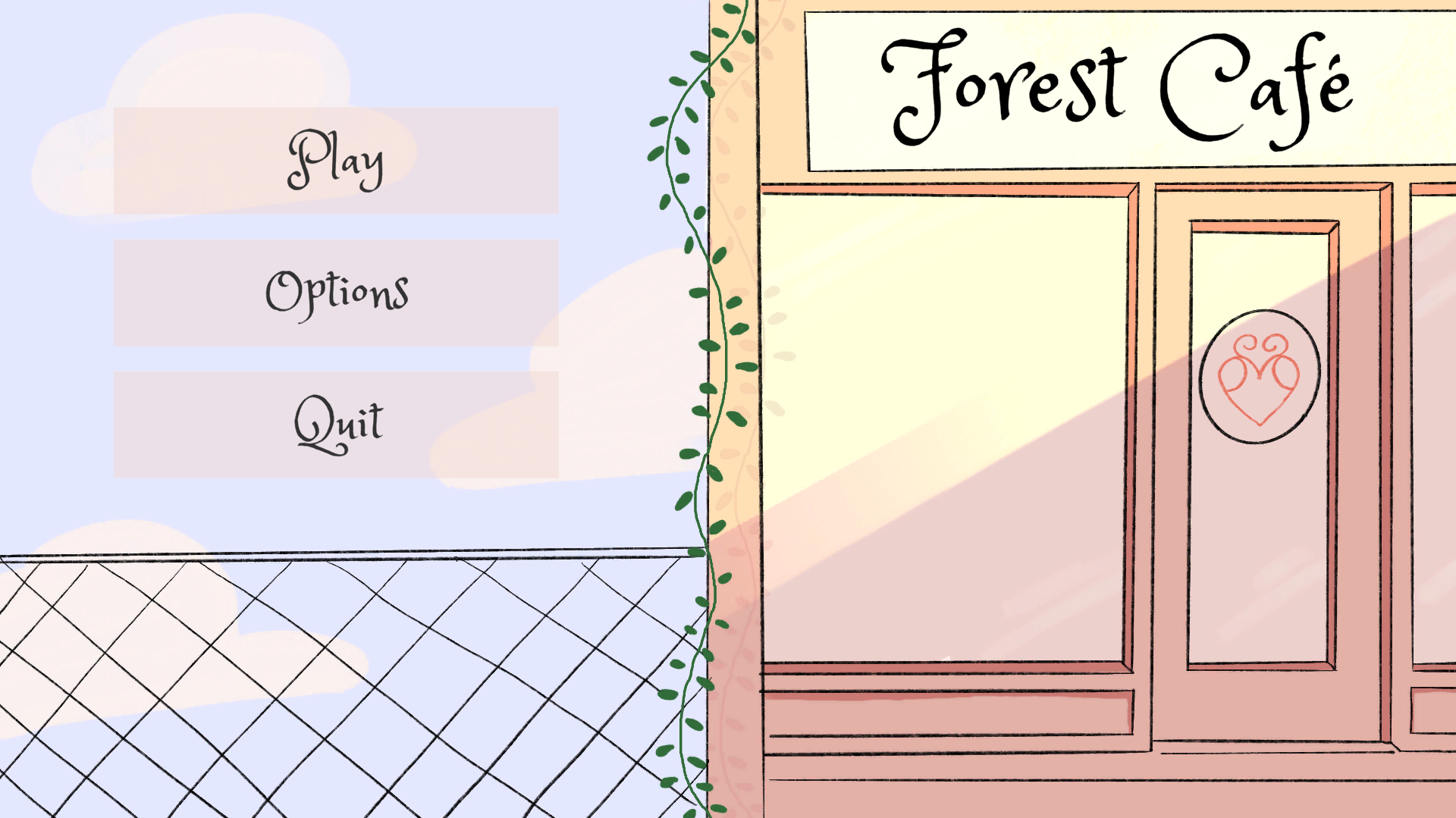
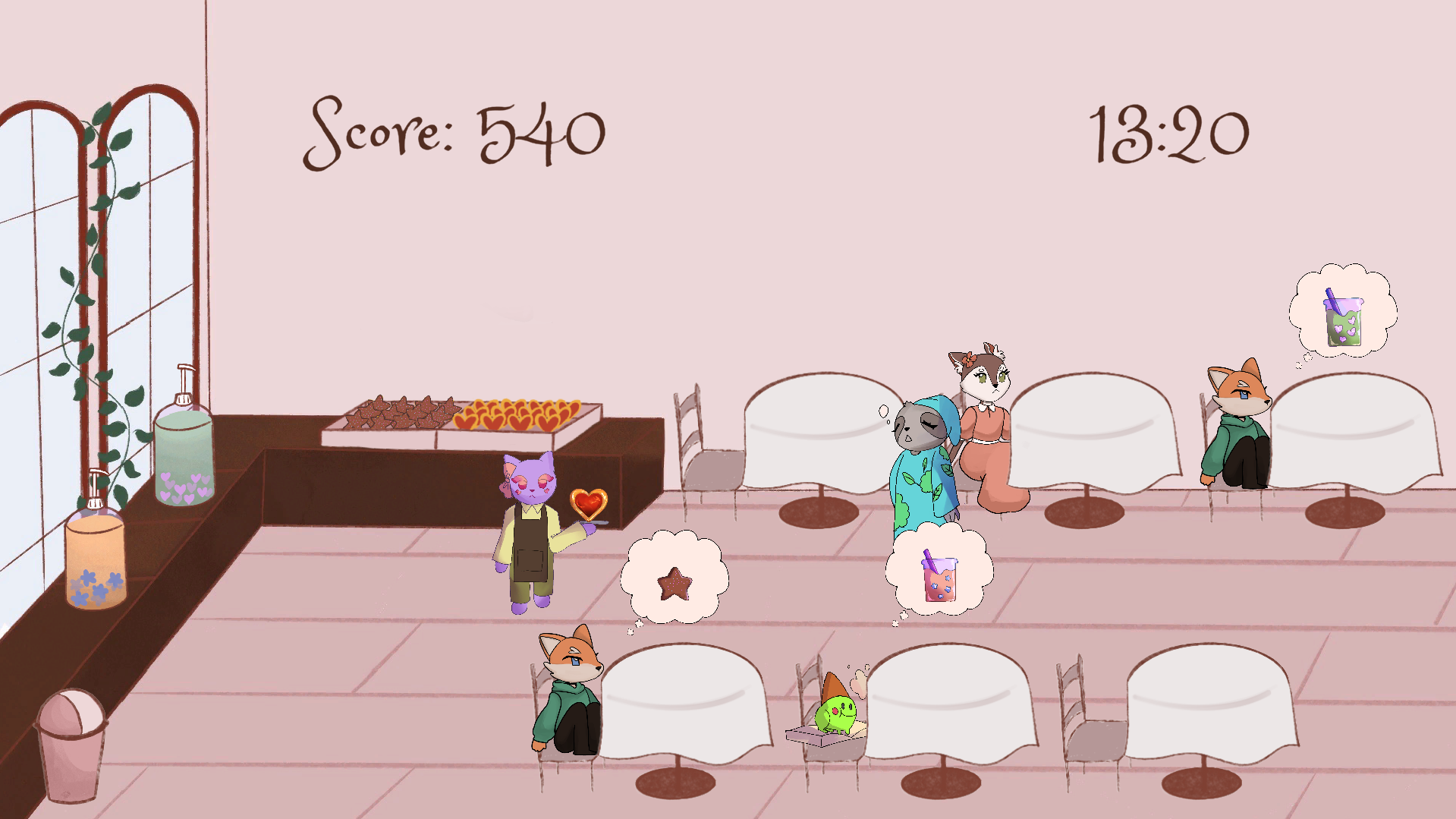
Full Playthrough
Customers · Player · Pickup · Main Menu/Audio · Score · Other
Customers
first iteration of customers
Customers - first iteration
The first element I made was the customer spawner, customer controller, and tables scripts. I wanted the customers to enter the shop at a regular interval and go to an empty table. You can see in the video that I managed this, and when there were no more free tables, a message came up in the console saying "no available tables" and no more customers entered.
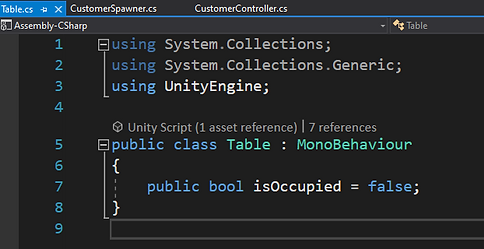
Table
The table script contains a boolean that marks the table occupied or not, that the other scripts then look at when choosing a table.
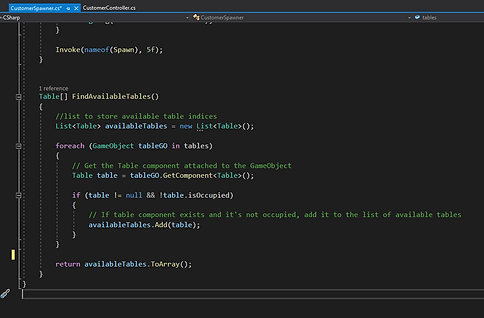
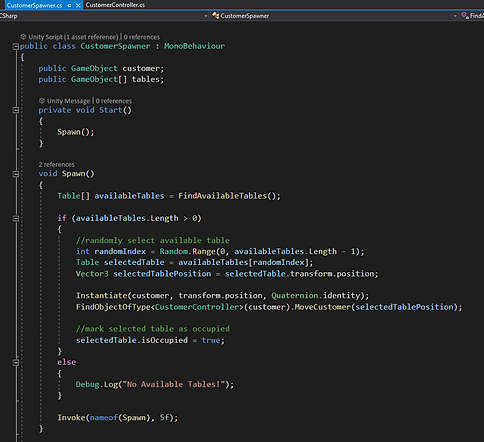
Customer Spawner
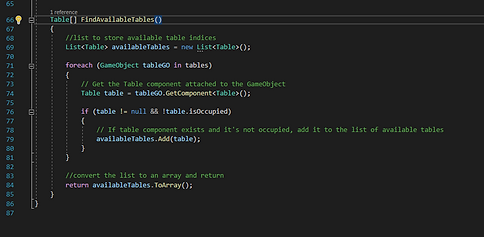
The customer spawner script runs a function to look at the list of tables and select an unoccupied one, then passes that back to the spawn function. That then instantiates a customer and starts the move customer function in the customer controller script and passes it the position of the selected table.
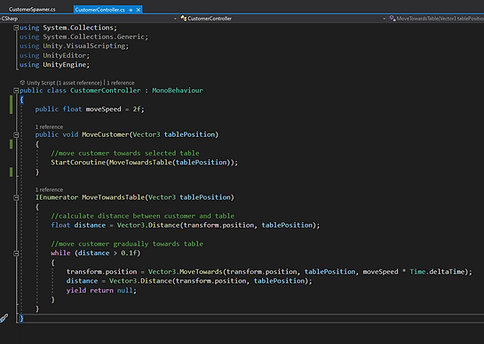
Customer Controller
The customer controller script moves the customer from the spawn point to the selected table at a specified rate.
Customers - final iteration
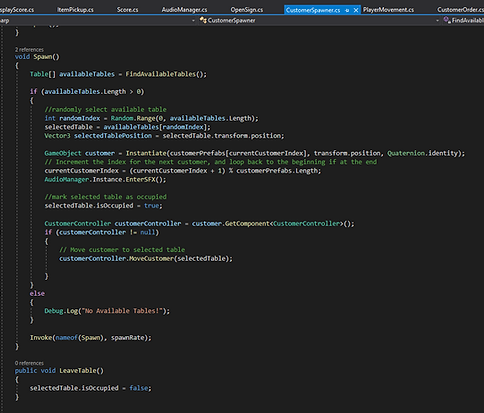
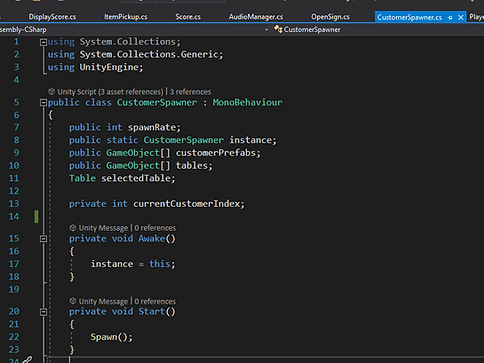
Customer Spawner
For the customer spawner script, I changed the customer game object into an array since my team members designed 4 characters in total. The customers spawned in the order of their index. I made them spawn this way because it was easier and also ensured there wouldn't be any chance of 3 of the same customer spawning in a row.
I added in the awake so I could easily reference this script in other scripts.
The Spawn function first choses a random table, then instantiates the next character and increments the index. It also plays the EnterSFX so that it seems like the bell on the door has been triggered. This is so the player is alerted when a customer has entered the shop. The selected table is then marked as occupied so another customer won't try to also sit there. The Move Customer function from the Controller script is then called to move the customer to the selected table. If there are no available tables, the code inside the if statement will not be called. When the entire Spawn function is invoked at the spawn rate so there is a constant flow of customers.
When deciding the spawn rate, I first set it as every 5 seconds, however this was much too long as there was enough time to finish serving each customer before the next arrived. I then tried every 3 seconds which was way too fast, it made it too stressful for the player to be able to keep up with the orders, and we were going for a calm and cozy game, so I settled for a spawn rate of 4 seconds.
When the customer leaves (script for this is later) this function gets called to mark the table as not occupied so another customer can then sit there later.
Find Available Tables didn't change from the first iteration.
Customer Controller
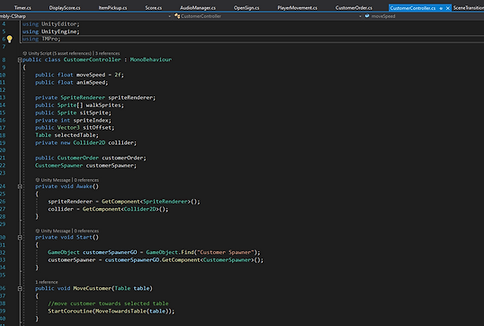
Customer Controller determines how customers moves.
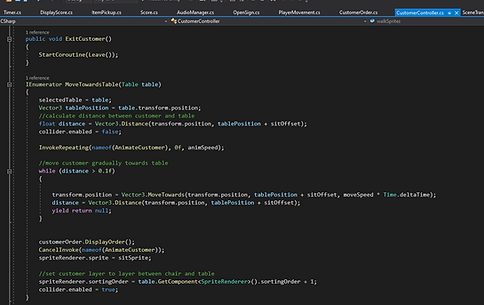
Move Customer is called when a customer has been instantiated with a selected table. Exit Customer is called when a customer's order has been completed.
Move Towards Table is called by Move Customer which passes it the selected table. First the position of the table is found, and the distance is calculated. The collider on the customer is disabled so that the player cannot accidentally interact with them before they have sat down and placed an order. Animate Customer is repeatedly invoked at the animSpeed (3fps). The while loop moves the customer towards the table at a constant rate. Once the customer is at the table, their order is displayed (from Customer Order script), the sprite stops animating and is set to the sit sprite, the layer index of the customer is set to table plus 1 (table script is actually on the chairs, yes it was confusing, and the table sprite is 2 layers in front of the chairs, so the customer is set in between the table and chair), and the collider is enabled.
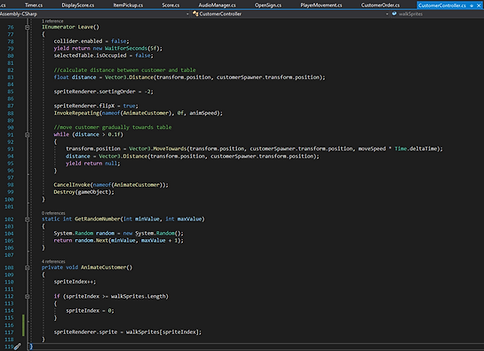
Leave is called by Exit Customer. The collider is disabled, the customer waits for 5 seconds (to imitate eating/drinking the order), then the table is marked as unoccupied. The movement is done the same as in Move Towards Table, however the sprite renderer is also scripted so that the customers face the door as they walk towards it. Once the customer reaches the spawn point (out of frame), Animate Customer is cancelled and the Customer is destroyed.
Animate Customer looks at the current sprite index, displays it, then increments it by one. This is looped so that when the index is incremented to a number greater than the number of sprites, it is set back to zero and loops.
Customer Order
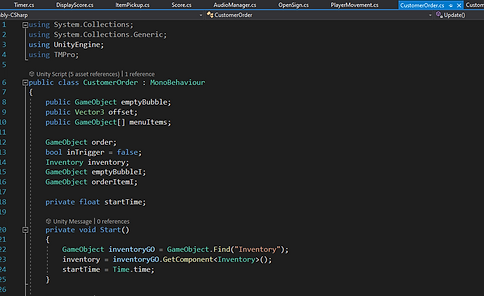
This script is attached to each customer.
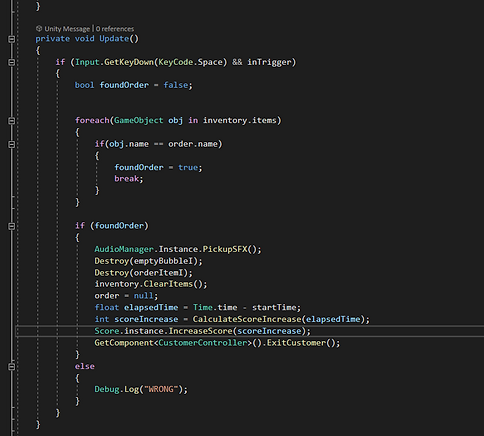
This function is called whenever the player enters the trigger and presses the space key. It looks at each item in the Inventory (this was fine to do like this because there will never be more than one item at a time in the Inventory) and if the item name matches the order name, foundOrder is set to true.
When foundOrder is true, a SFX is played, the order bubble and order item displayed above the customer are destroyed, the inventory is cleared so the player is no longer holding that item, and the order is set to null so there is no chance it will accidentally be completed again. The time it took from the order being displayed to the player completing the order is passed to the calculate score increase, which then passes the right amount of points to the score so it can be displayed on screen. Exit Customer is then called so the customer can leave.
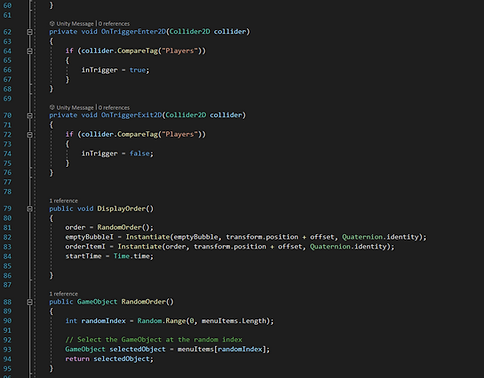
Display Order is called when the customer has reached the table. Random Order selects a random menu item, then an empty order bubble and order item (which is a sprite of the chosen order item) get displayed at an offset to the customer (so it is in the air and not in the middle of the customer). A timer then starts so the correct amount of points can be calculated.
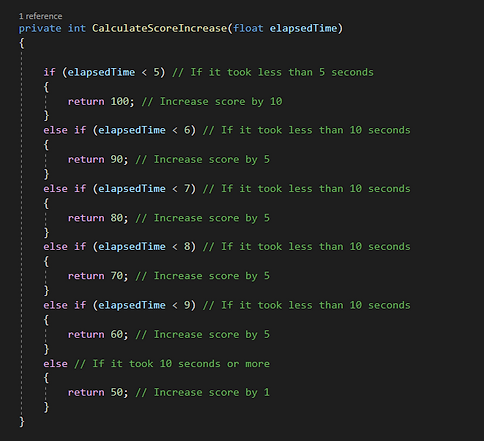
Calculate Score Increase calculates the amount a points the player will earn depending on the elapsed time. I'm sure there is a shorter way to write this but this worked for me. I also probably should have put this in the Score script to keep everything more organised, but it works fine here.
max score
min score
the first element i made was the customer spawner, customer controller, and tables scripts. I wanted the customers to enter the shop at a regular interval and got to an empty table. You can see in the video that i managed this, and when there were no more free tables, a message came up in the console saying no more free tables and no more customers entered.
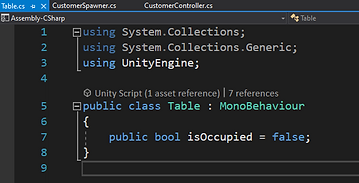
the table script contains a boolean that marks the table occupied or not, that the other scripts then look at.
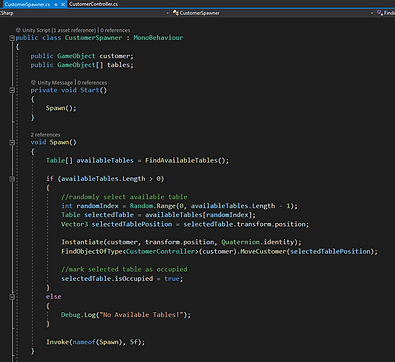
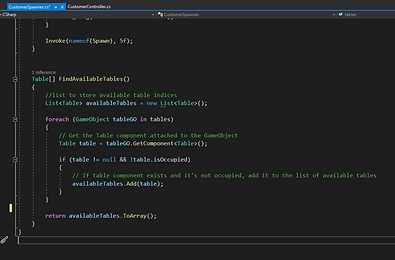
the customer spawner script runs a function to look at the list of tables and select an unoccupied one, then passes that back to the spawn function. that then instantiates a customer and starts the move customer function in the customer controller script and passes it the position of the selected table.
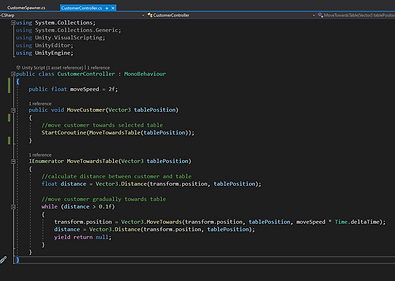
the customer controller script moves the customer from the spawn point to the selected table at a specified rate.
for the final iteration of my customer scripts, i also added in a customer order script so the customers would randomly chose a menu item to order.
customer spawner final
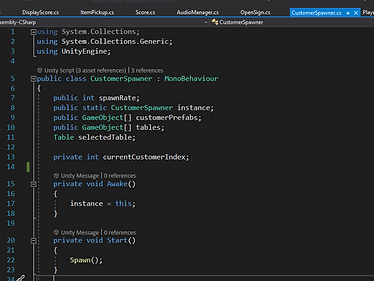
for the customer spawner script, i made the customer game object into an array since my team members designed 4 characters in total. the customers spawned in the order of their index. i did this because it was easier and also ensured there wouldn't be all of the same customer on the screen at one point
i added in the awake so i could easily reference this script in other scripts.
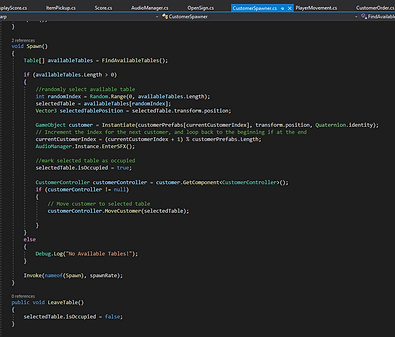
this chooses a random table
this instantiates the next character of the index then increments the index
it also plays the sfx when the customer enter the shop, like a bell on a door so the player is alerted a new customer has entered
this marks the selected table as occupied so another customer wont try to sit at the table
this starts the move customer function in the customer controller script and passes it the selected table
this makes the spawning go continuously unless there is no free tables
when the customer leaves (script for this is later) this function gets called to mark the table as not occupied so another customer can then sit there
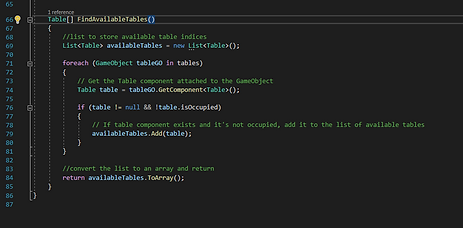
this didnt change from the first iteration, it finds an available table and passes it to the spawn function
customer controller final
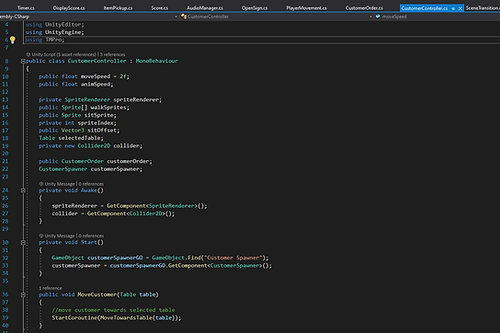
the customer controlled determines how the customer moves
this is called by the spawner script after a table has been chosen. it calls the coroutine that moves the character to the chosen table
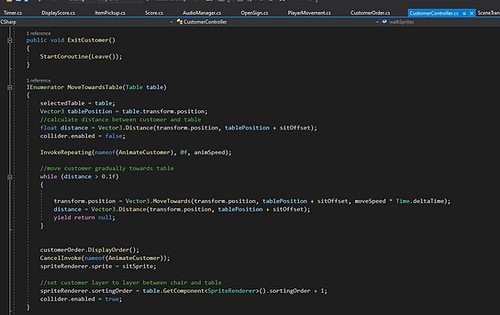
this is called by the order script after the customers order has been completed. it calls the coroutine that moves the character to the door
this takes the chosen table and determines where it is
this disables the collider around the customer, so the player cant accidentally interact with them before they have sat down and placed an order
this starts the animate character, and repeats it at the animSpeed
this starts the animate character, and repeats it at the animSpeed
this gradually moves the character towards the table, then stops once they are there
once they have sat, display order is called, the customer stops animating, and the sprite changes to the sitting sprite.
this changes the layer of the customer to the layer in between the chair and table object (the table is actually on the chair, so they go in front of the chair and behind the table. the collider is then enabled so the player can interact with them
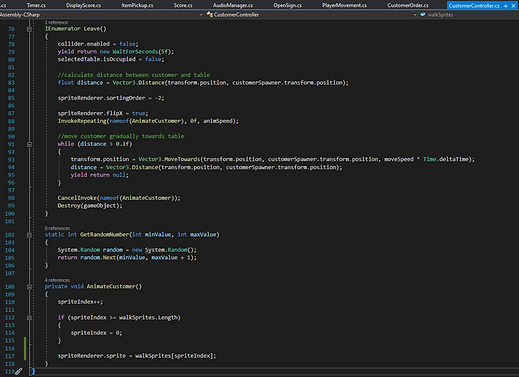
this coroutine is called when exit customer has been called
the collider is disabled again, the customer waits at the table for 5 seconds (to imitate eating the order) and then the table is marked as unoccupied.
the distance to the door is calculated and the layer index is set to 2 (in front of the back tables and behind the front tables. the sprite is flipped so it is not walking backwards, and the animate customer is called again.
this is the same as in movetowardstable,
once the customer reaches the door (is out of the scene) animate customer is stopped and the customer gameobject is destroyed
this animates the customers. their walking sprites were added in an array in the order they needed to be shown in.
customer order final
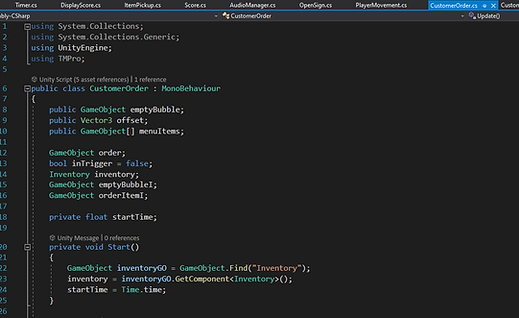
this script is attached to each customer
ive added a timer in here so the score can be calculated depending on how long the player takes to deliver the order
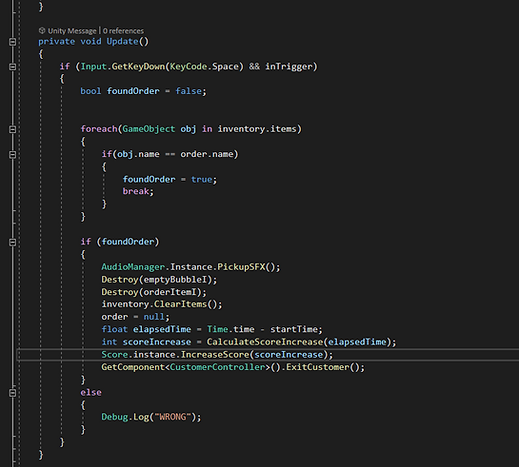
this happens whenever the player has triggered the collider around the customer
this looks at each item in the players inventory (its not slow to do it this way because there will never be more than one item in the inventory)
if the player has an item in their inventory that matches the name of the order, found order is set to true
when found order is true, an sfx is played, the order bubble and order item displayed above the customer are destroyed, the inventory is cleared so the player is no longer holding that item, the order is set to null, so theres no chance it will accidentally be completed again. The time it took the player to deliver the order is passed to the calculate score increase, which then passes the right amount of points to the score so it can be displayed on screen. the exit customer function is then called so the customer can leave.
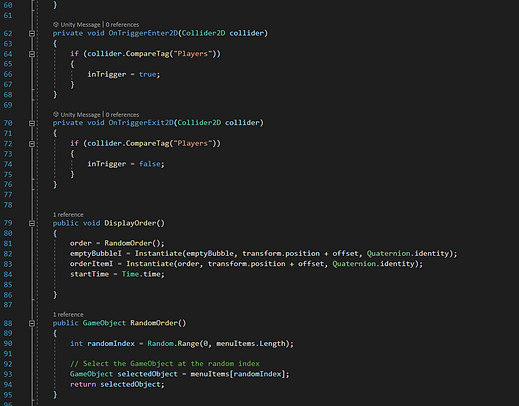
when display order is called, random order selects a random menu item and passes it back, then an empty order bubble and order item (which is an image of the chosen order item) get displayed at an offset to the customer.
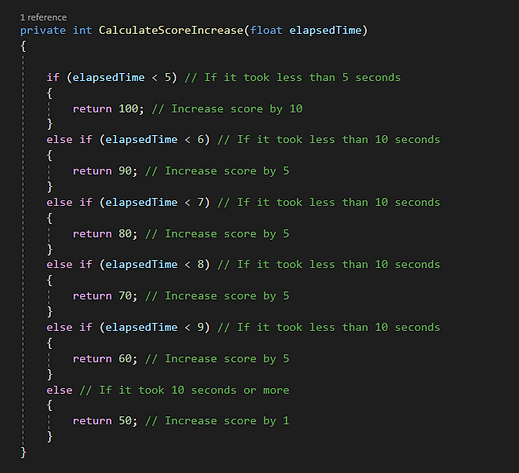
this calculates the amount a points the player will earn depending on the elapsed time. im sure there is a shorter way to do this but this worked for me. I also probably should have put this in the score script to keep everything more organised, but it works fine here.
Player
first iteration of players
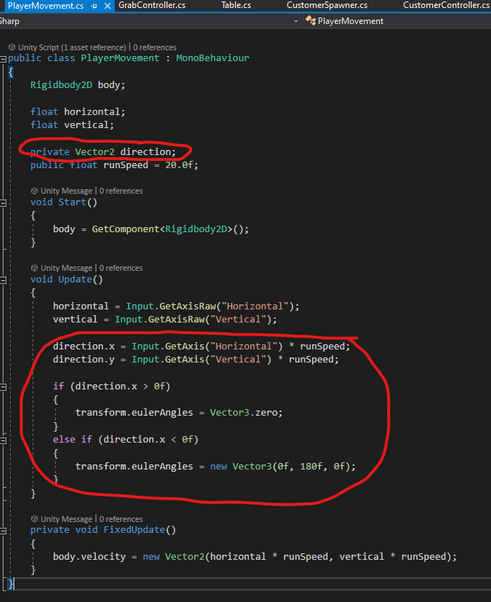
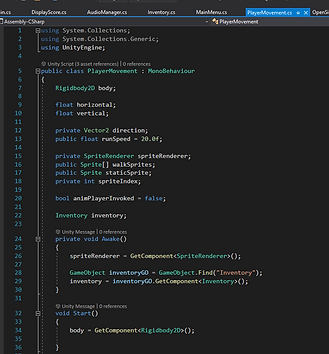
Player Movement - first iteration
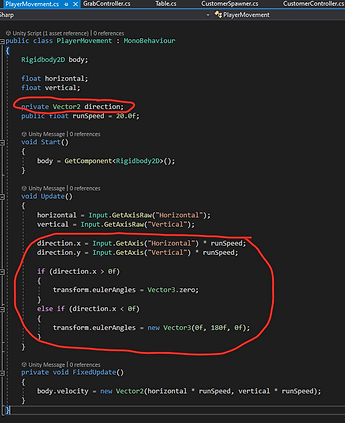
This is a basic script to make the player move. The sections circled in red flip the character around so they are always facing the direction they are moving. This was necessary so when the player is holding an item, it will always be on the correct side.
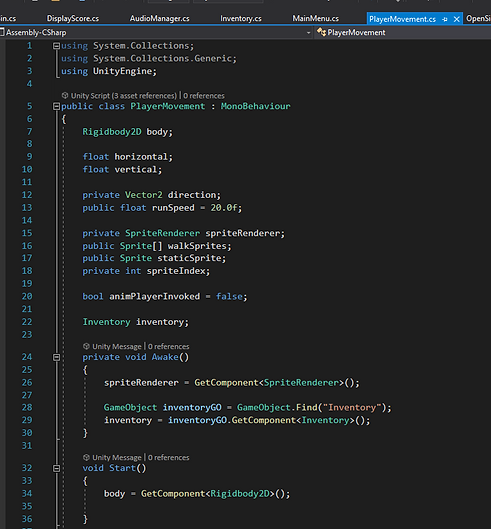
Player Movement - final iteration
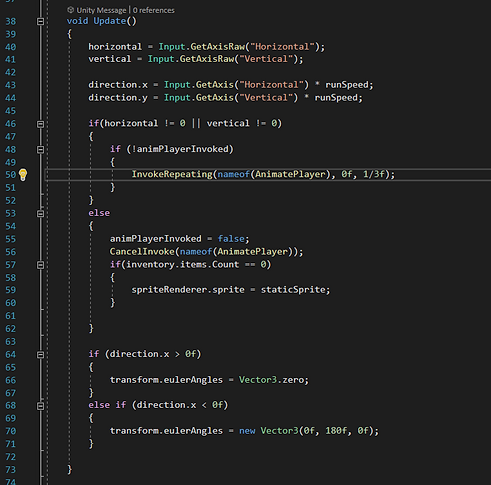
When the player is moving, Animate Player is invoked at a rate of 3 fps. If the player isn't moving, the sprite goes back to the static sprite (not holding up a tray). However, if the player stops moving and they are holding an item (have an item in their inventory), the sprite stays on the last sprite it was on so that the tray stays up and the item isn't floating.
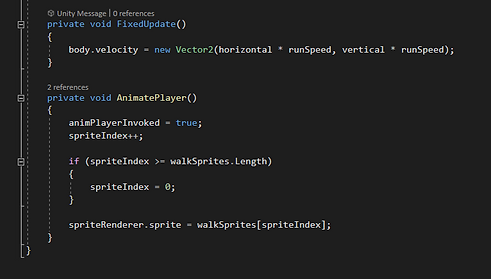
Animate Player looks at the current sprite index, displays it, then increments it by one. This is looped so that when the index is incremented to a number greater than the number of sprites, it is set back to zero and loops.
Got player to flip around when moving the other way, got script from atari remake
player movement final
add video of player movement
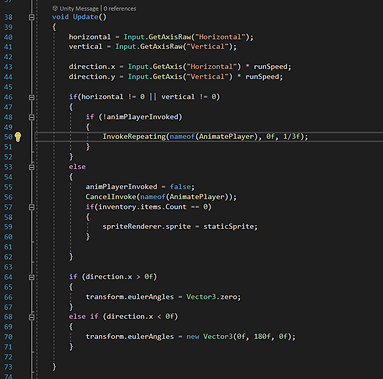
this makes the animation repeat at a rate of 3 fps.
if the player isn't moving, the sprite goes back to the sprite that isn't holding the tray up. however, if the player stops moving and they are holding an item (have an item in their inventory) it stays on the last sprite it was on so the tray stays up.
this flips the player so they are facing the direction they are moving in.
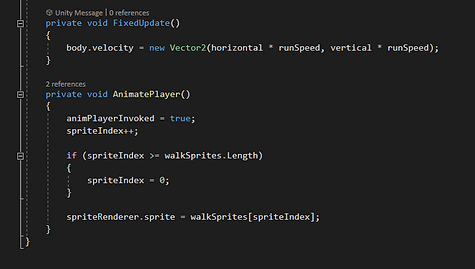
animate player runs through the players walking cycle.
Pickup
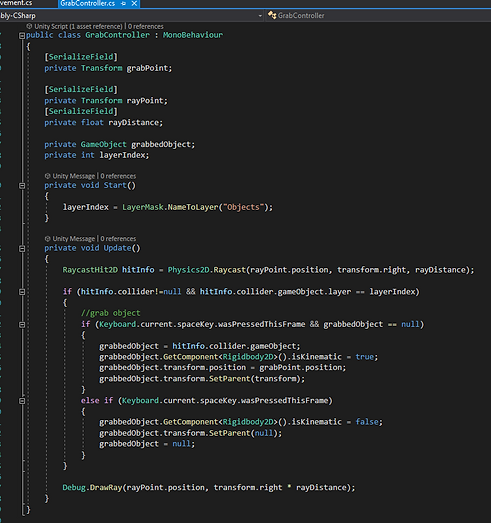
Grab Controller - first iteration
This gets attached to the player
I initially used Raycast to allow the player to physically pick up the food items. The food items are unmovable when they are not picked up. However, I decided that I didn't want to do it this way, I wanted to use an inventory system instead, so I scrapped this script.
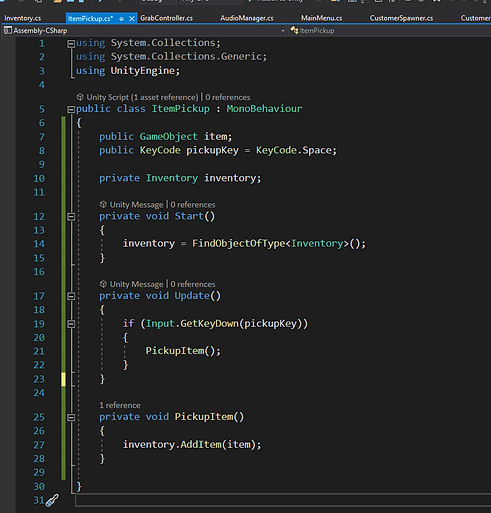
Item pickup/Inventory - first iteration
Item Pickup
This Item Pickup script was meant to allow the player add the item to the inventory when they were next to it and pressed the space key, however I forgot to add the colliders properly so it didn't work.
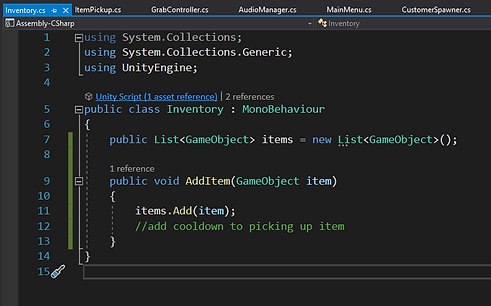
Inventory
This script is attached to an empty game object in the scene. I made the items into a list, because I hadn't decided if I wanted the player to be able to pick up more than one item at a time.
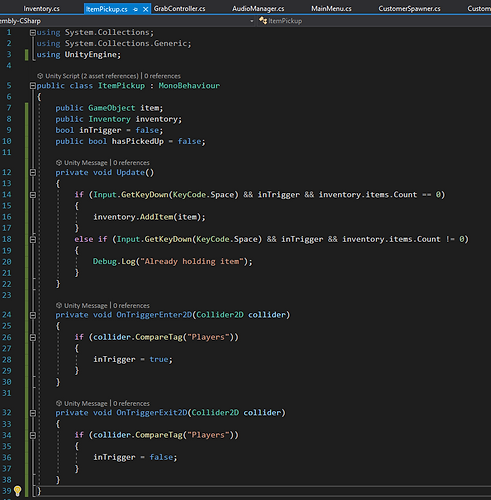
Item pickup/Inventory - second iteration
Item Pickup
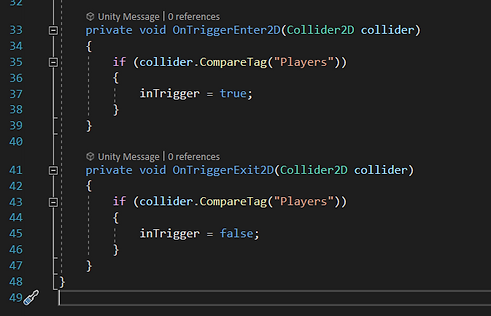
Since the previous version didn't work properly, I added some conditions to adding an item to the inventory. The player had to be in the trigger collider (i made a bool that gets set to true on trigger enter and back to false on trigger exit) and the inventory had to be empty (because I only want the player to be able to hold one item at a time so they can't just stock up on all the items at the start of the game).
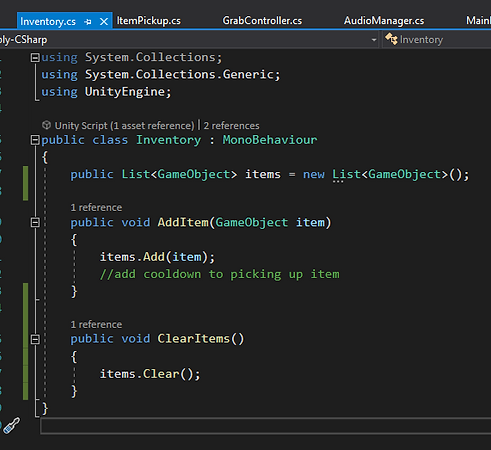
Inventory
I wanted to make a way for the player to be able to discard an item if they picked up the wrong one, so i added a function to the Inventory called Clear Items which clears the items list. This is called in the Bin script (next script).
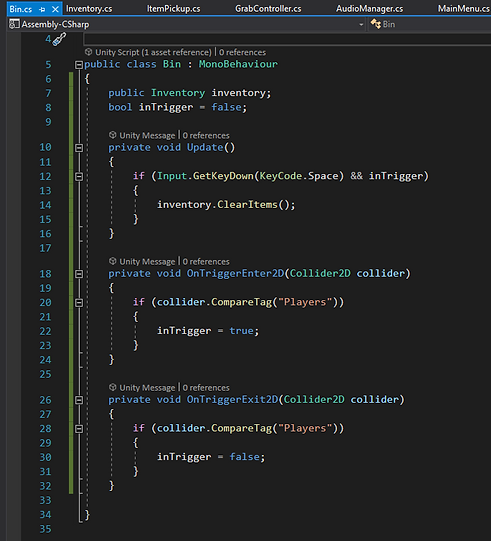
Bin
When the player is in the trigger and presses the space key, the inventory is cleared. I added this in so that if the player picks up the wrong item, they can get rid of it to pick up the correct one and not have to wait until a customer orders the item they are holding.
Player Text - first iteration
Player Text
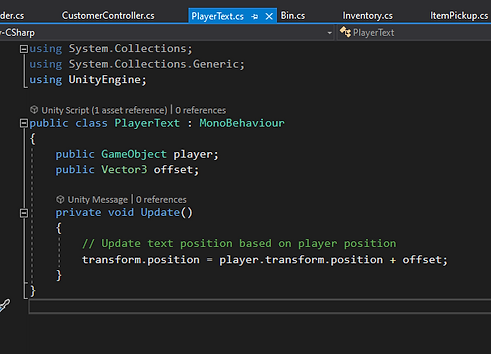
I added a text object that stays above the player and displays the name of the item in the inventory. This Player Text script is attached to the text object, which is referenced in the inventory. I referenced the player in this script so it can get the position of the player to be able to follow it around.
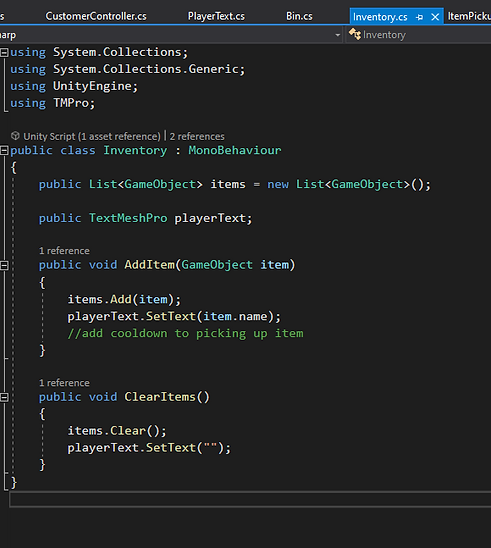
I added the player text object to the Inventory. When an item is added to the inventory, the text gets set to the name of that item.
When the inventory is cleared (from the bin), the text gets set back to nothing.
All Pickup - final iterations
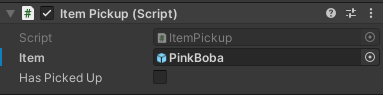
Item Pickup
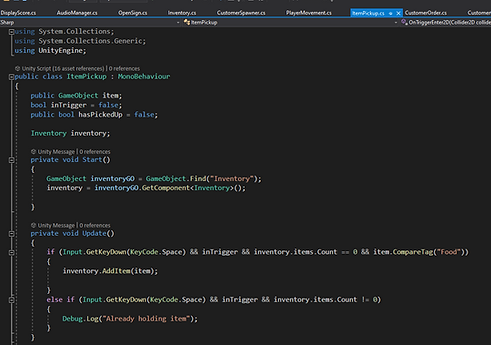
Item pickup is attached to each food item. I found while playtesting that you could pick up the items in the customers order bubbles. To solve this I added another condition to picking up items. I set the tag of the items on the counters to "food", so the player could only add items to their inventory that were tagged food. I also set an error message called already holding item while playtesting so I could figure out if the player wasn't picking up the item because of an error with the Inventory.
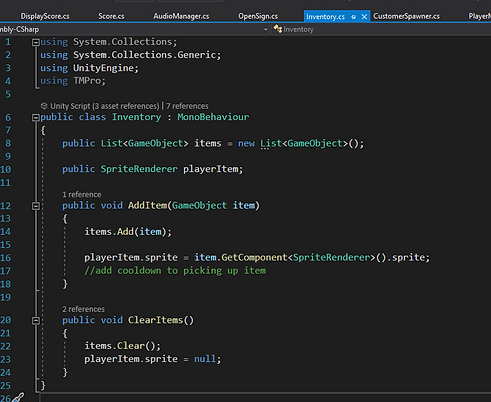
Inventory
I changed the text object into a sprite renderer, so the sprite of the item could be shown next to the player instead of the name of it.
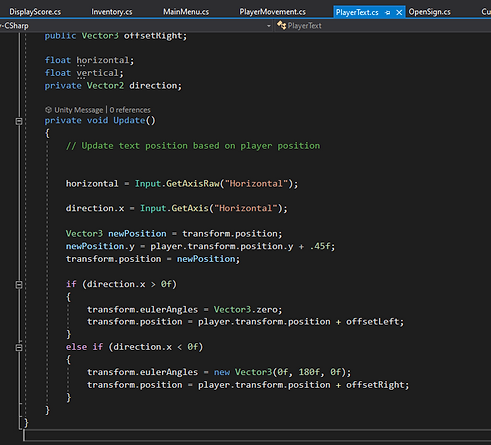
Player Text
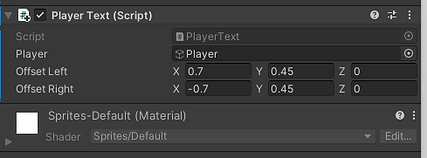
This script should now be called Player Icon since there is a sprite instead of text, but I forgot to change it. It displays the current inventory item, and follows the player around. I added the offset so I could position the items to make it look like the player was holding the food in the tray. I couldn't figure out how to make it flip sides when the player turned, so I added in a negative offset that is used when the direction is opposite.
Main Menu/Audio
Main Menu/Audio - first iteration
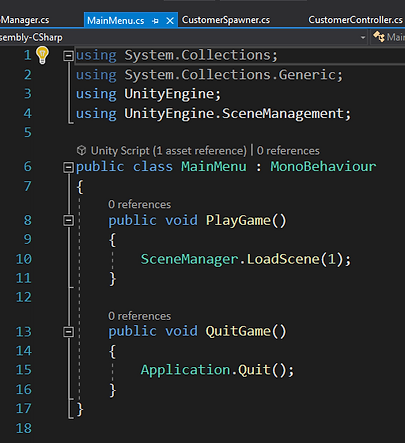
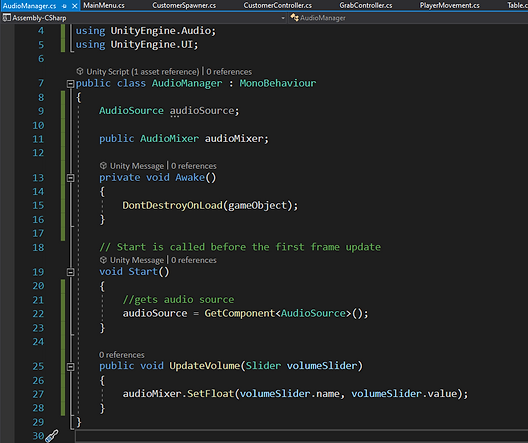
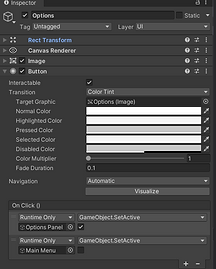
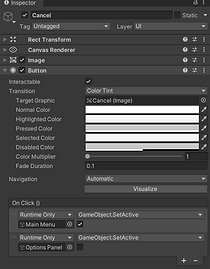
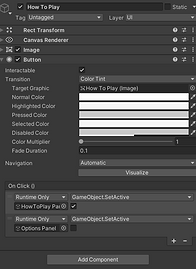
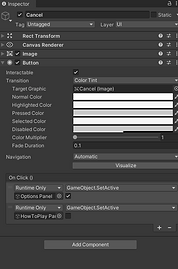
While I was waiting for all the assets, I created a very simple menu with a Play, Options, and Quit button. I used the OnClick events in the buttons to get the options screen to show up (shown below). The options menu is where the audio is controlled, and later I added another button in the options menu that would then change to a screen with the controls and instructions for the game.
Options button
Cancel button
How to play button
Cancel button
Main Menu - final iteration
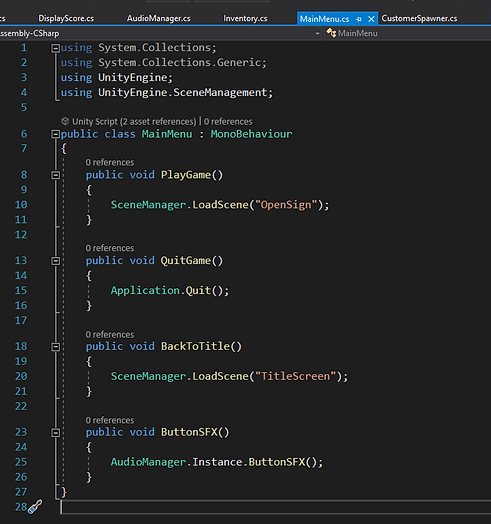
This is the final script for the main menu. I added the buttonSFX to the onClick of every button. Probably a quicker way to do this would have been to add that to the button functions instead of making it its own and having to add it to the events on every button.
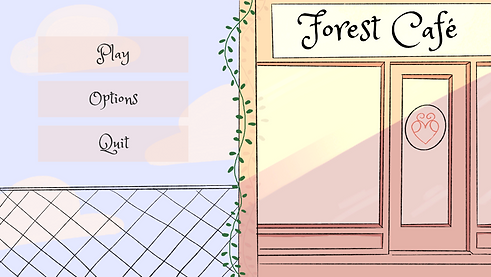
First screen you see when you open the game.
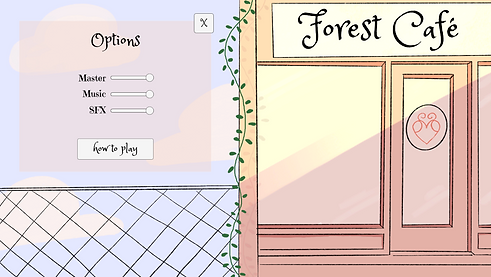
Clicking the option button brings you to this screen where you can change the sound levels or look at how to play, the x takes you back to the main buttons.
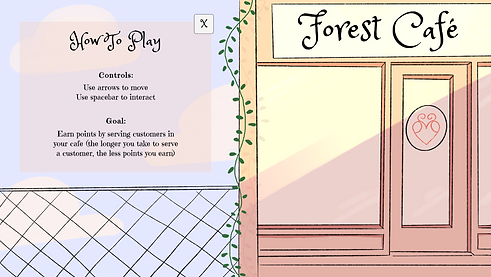
Clicking the how to play button brings you to this scene, the x takes you back to the option screen.
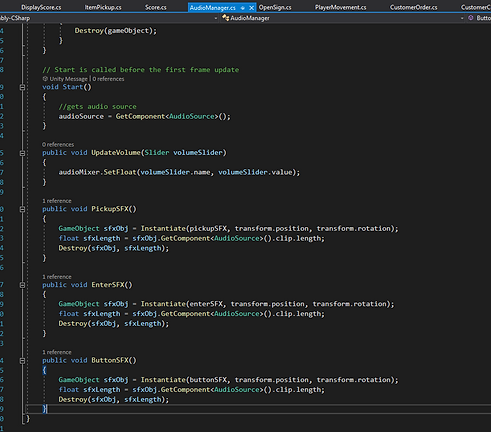
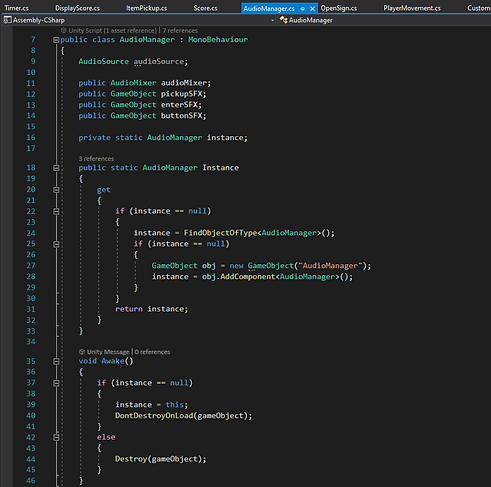
Audio - final iteration
The audio manager object that this script is attached to gets created in the title screen and set to don't destroy on load so it will carry over into the next scene without a break in the background music.
However, if you go back to the title screen after playing the game, another audio manager would want to be created, so I added this get statement in which means only one audio manager can exist at a time.
Score
Score
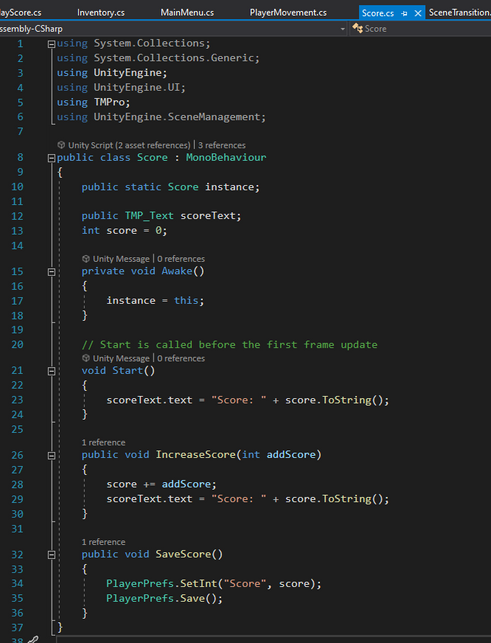
This script is in charge of displaying the score in the cafe scene. The score is calculated in the customer order script then added to the total score, which is displayed on screen.
I added Save Score so the final score can be accessed in the next scene to be displayed.
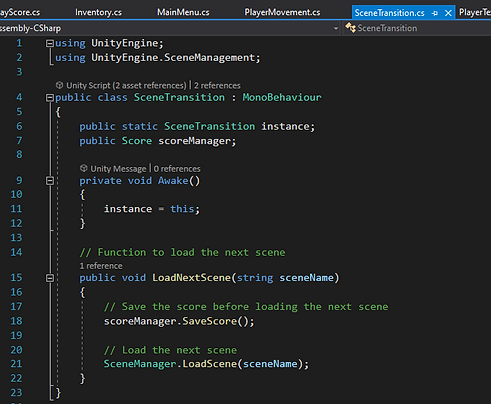
Scene Transition
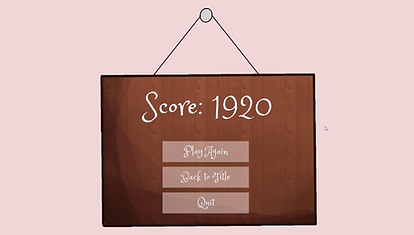
I added this in so I could display the score the player earned on the end screen, which is a different scene that the score script didn't exist in.
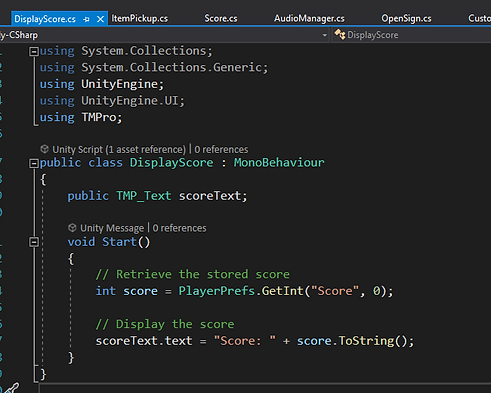
Display Score
This is attached to the score text on the end screen. It looks at the saved score then displays it.
Other
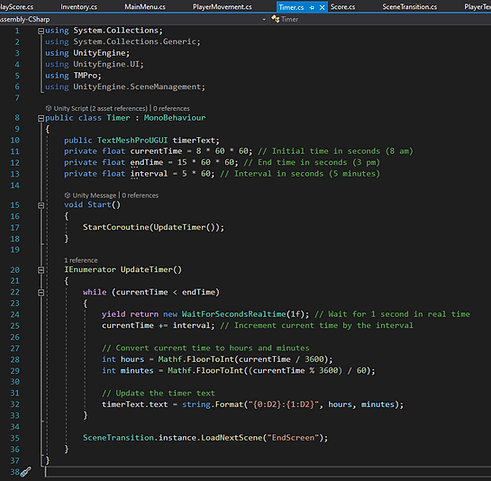
Timer
I made a timer that counts up in clock time, starting at 8am and going to 3pm. This is more aesthetically pleasing than a simple countdown timer. It also makes a lot more sense to do it this way in the context of the game.
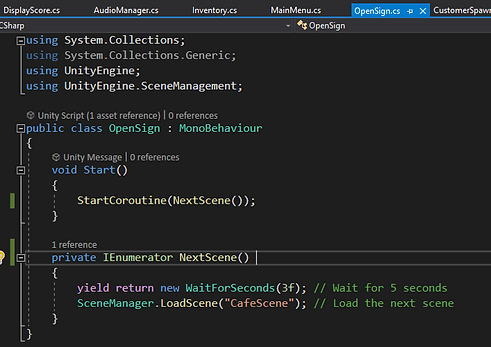
Open Sign
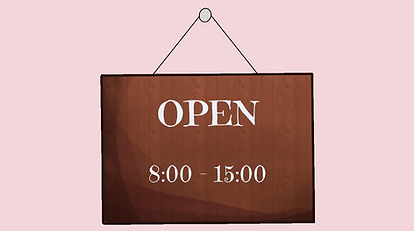
This is to make the open sign scene play for 3 seconds in between clicking the play button and the game actually starting. This was important for the aesthetic of the game and also so the player knows how much time they have to play.
Colliders
Because of the perspective of the game, I had to add colliders so the player couldn't walk anywhere, only on the floor. I couldn't use gravity to keep the player on the floor since it is still a 2D game, just with orthographic perspective. I added colliders above the counters and tables, and also on the closer tables. You can see in the video that when the colliders are not there, the player can move anywhere, and when the colliders are there, they player can only move on the floor.
Reflection
Reflection:
I really enjoyed this project, and gained more confidence with the technical aspect of game design. I wasn't able to find an exact tutorial like I did last time, which I think was good because it forced me to think about the game that I wanted to create more and develop it myself. I did google a lot of things, but I learnt a lot and made sure I understood the code before I used it myself.
Things i would change:
-
If I made this game again and had more time, I would add a patience meter on the customers. Currently, the points earned when serving a customer decreases as they wait, however the player has no indication of how long it has been. Expanding on this, I would also make the customers leave if they have had to wait too long, so the player will miss out completely on earning those points
-
I would make it so the customers can order multiple things and the player can hold multiple things.
-
I would set different speeds for the customers to make them all unique and interesting. I would also add in a probability for what each customer orders. I would maybe set different patience meters for different customers.
-
I would add multiple levels. Each level would be a new day, and each day a new menu item would be added.
-
I would let the player earn money at the end of each level, so they can then customize the player and the shop. It would make some of the furniture or decoration increase the customers patience or tips.